Profile Picture Tip Jars
Main Tip Jars
Main tip jars are the touch to log in tip jars. There is the single frame, the frame on stand and the floor style. Whichever tip jar it is, the setup is the same.
Rez the tip jar
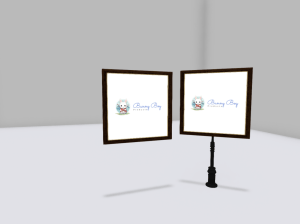
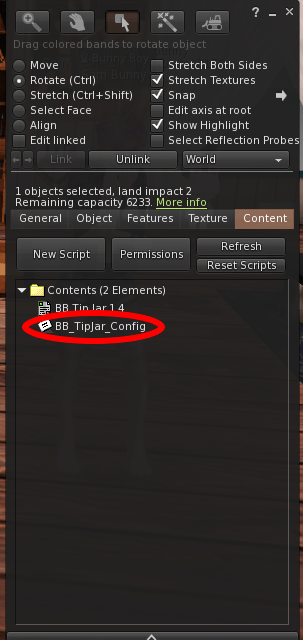
Once the tip jar has been rezzed, right click on it and choose edit. On the editor window go to the contents tab. Open the config notecard. If the tip jar asks you to accept debit permissions, ignore it.
With the config notecard open you can configure how you want the tip jar to act. We will go through each item.
Server
The Server Number is for if you wish to use the tip display board that came with your system. If you will be using multiple servers, set the number here. This is only necessary if you will be using multiple servers in a single region. (multiple servers, not multiple display boards. You can rez as many display boards as you want, but only need one server for them. You only need multiple servers if you have multiple parcels in a region and want each one to keep track of only it’s tips) Make sure tip jars, server and display boards all have the same server number.
Price
This is the price that is displayed in the editable box when a person goes to pay the tip jar. This can be set to any integer. Default value is 100.
Pay Buttons
This is the amounts of the buttons in the pay window when a person goes to pay the tip jar. This can be set to any four integer values. There must be four values separated by a comma.
Default Texture
In this setting put the default texture you want to display on the tip jars when they are not in use. For example, your logo. Put the UUID of the texture on this line. Do not put the texture name, it must be the UUID. To get the UUID of the texture, in your inventory, right click on the texture and select “Copy Asset UUID”. You must have full permissions on the texture to get the UUID. If you don’t want to display your own image, leave the 0 on this line and the default will be used instead.
Location
Here, put the name of the location. This can be your club name or parcel name. This setting is where the tip jar will get it’s name. For instance, if set to Bunny Boy, the tip jar name when not in use is “Bunny Boy Tip Jar” and when in use it is “Worker Name’s Tip Jar at Bunny Boy” So change this setting to your location’s name so it will be your location’s name that is displayed.
Idle Text
This is the hover text displayed above the tip jar when it is not in use. Default is “Touch to Log In” but you can set it to anything. If you want to disable the hover text when not in use, set this to 0 and there will be no text above the tip jar when not in use.
Thank You Text
This is the text that is said in local chat when someone tips the tip jar. You can set it to anything. Use $TIPPER$ in place of the tipper name in the text and the name of the tipper will be inserted there when tipped.
Display Last Tip
On the tip jar hover text, when tipped, the hover text displays the last tip amount. If you don’t want to display this amount, change this to NO and that line will not be displayed at all.
Display Last Tipper
On the tip jar hover text, when tipped, the hover text displays the name of the last tipper. If you don’t want to display this name, change this to NO. If you have already set Display Last Tip to NO then this won’t display either.
Worker Tip Percentage
This is the percentage you want to give to the worker (the person logged into the tip jar) when it is tipped. This can be any integer (whole number, no decimals). Caution: Do not set this number too low. If at any time the tip jar calculates that it will be giving the worker L$0 it will give the entire tip to the worker thinking that the tip is too low. You can not give the worker nothing. Default is 90.
Allow Multiple Logins
This setting is if you want someone to be able to log in to more than one tip jar at a time. This is not the same as the linked tip jars. Linked tip jars are considered single tip jars.
Distance
Auto Logout. The tip jar can log out a use that has left and forgotten to log out. Here you can set the distance from the tip jar that a user can go before it logs them out. It can be any integer. If you want to allow them to be anywhere in the entire parcel, put PARCEL here and as long as they are in the parcel they will stay logged in. If you want to allow them to be anywhere in the entire region and stay logged in, put SIM or REGION here and it will not log them out unless they leave the region. If you want to turn off auto logout, set to 0.
Allow AFK
Do you want to allow tip jar users to go AFK while logged into the tip jars? If you are an AFK location, set to YES and the tip jars will not check if the user is AFK. If you want only active persons to use your tip jars, set to NO and the tip jar will check if the user is active and if they go AFK it will log them off. The tip jar checks local chat activity (it does not check what is said, only if the user is saying anything) and if they go silent for a long time will give a warning popup. The user can then click OK on the popup or say something in local chat to reset the system.
Use Particles
When the tip jar is tipped the tip jar can explode some hearts. This lasts only a few seconds. If you do not want the tip jar to do this, set to NO.
Group Only
You can set the tip jar to only allow users that have your group tag on to log into the tip jar. If you set this to YES, make sure the tip jar is in the same group as the users.
Reserved
Want only one person to be able to log into this tip jar? Put their UUID here. You can get their UUID from their user profile. This setting will not stop the owner of the tip jar or any managers listed in the tip jar from logging in.
Managers
You can designate up to 9 managers for the tip jar. Managers can log users out of the tip jar and can log into the tip jar even if it is reserved. Put the manager(s) UUID on the lines. If you don’t want a manager, leave 0 on that line.
After you have edited the config notecard, save it. The tip jar will reset. If there are any errors they will be sent to you in your chat (private messages). If there are no errors, the tip jar will ask you for debit permissions. Select Allow on that pop up.
Why do you need debit permissions?
The tip jar needs debit permissions to pay the workers that log into the tip jars. The way the tips work, when the tip jar is tipped, you get all the money from the tip. The tip jar then calculates the amount to send to the worker based on the percentage you set in the config and sends that amount form your account to the worker. It needs debit permissions to do this.
Once you have given debit permissions the tip jar will now display your logo (or the default logo if you didn’t put one in the config) and is ready to go. You can take a copy of this tip jar and rez more using that copy and those copies will already have the correct config. Each one will ask for debit permissions.
Your tip jars are now set up and ready to use. Go to the server section if you wish to use the display boards. (You do not need a server if you will not be using the display boards. The tip jars will still function.
 Bunny Boy